Build Your Dispatch Board
Read and run the PocketTech dispatch board: schedule from the pending tray, reschedule with drag-and-drop, and keep the office and field in sync in real time.
The dispatch board is where your day actually runs. It shows every technician and every scheduled visit on one timeline, and changes push to the field the moment you make them.
Reading the board
Each row is a technician, and time runs left to right across the top. A scheduled visit shows as a block on that tech’s row, and the status legend up top tells you what the colors mean.
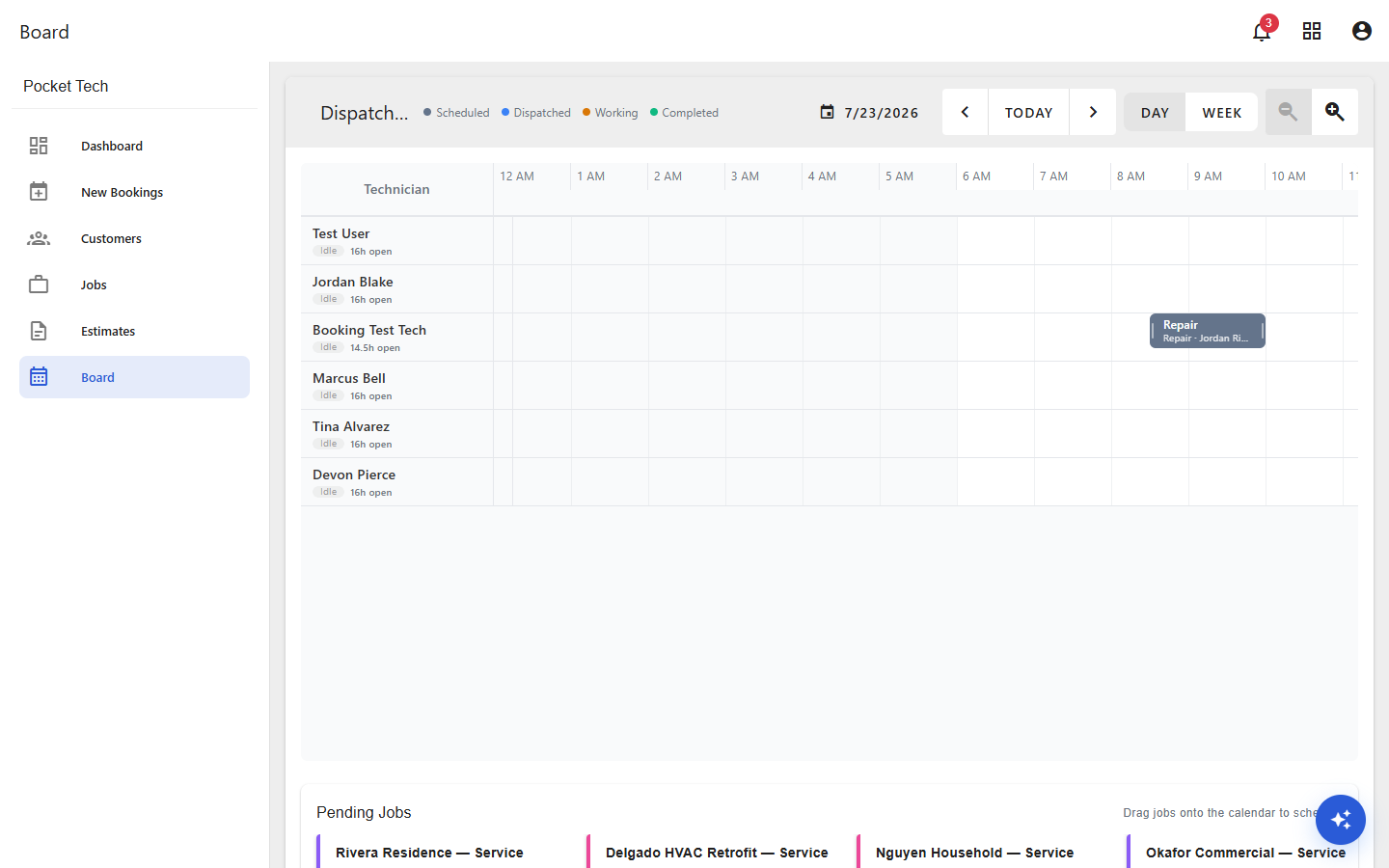
- Scheduled, booked but not yet sent to the tech
- Dispatched, sent to the tech’s device
- Working, the tech is on the job
- Completed, the visit is done
At a glance you can see who’s booked, who’s open (each tech shows their remaining open hours, like “16h open”), and where the gaps are. Use the date picker and arrows to move between days, Today to jump back, the Day / Week toggle to change the range, and the zoom controls to tighten or widen the timeline.
Scheduling from the Pending Jobs tray
Jobs created without a time wait in Pending Jobs, the tray beneath the board. Each card is color-coded and names the customer.

Drag a card onto a technician’s row at the time you want, then confirm the duration, that creates the appointment and schedules it. To reschedule later, drag an existing block to a new time or a different tech. Every change pushes to the affected tech instantly.
Keeping the field in sync
As technicians work, their status flows back to the board in real time, scheduled, dispatched, working, then completed, so you’re never dispatching blind. You can see who’s running long and shuffle the rest of the day accordingly.
Tips for a smoother day
- Build tomorrow’s board the afternoon before, so the morning starts calm.
- Leave a buffer in each tech’s day for the emergency call that always comes.
- Clear the Pending Jobs tray daily so nothing unscheduled slips through.
What’s next
- Create your first job if you haven’t yet.
- Explore the scheduling and dispatch feature in depth.