Add Your First Customer
Create a customer in PocketTech: contact and service details, a separate billing account for property managers, and notes your techs will see on arrival.
Customers are what your jobs, estimates, and invoices attach to. You can create one from scratch here, add one on the fly while building a job, or send them an intake form and let them fill in their own details. This guide walks the full customer form, including the billing options that matter for commercial and property-manager accounts.
Before you start
You’ll work from the Dispatch area, so sign in as a dispatcher, manager, or admin.
Step 1, Open the new customer form
From the Dispatch sidebar, open Customers, then click Create Customer. You can also add a customer inline while creating a job, which is handy when a first-time caller books an appointment on the phone.
Step 2, Enter customer details
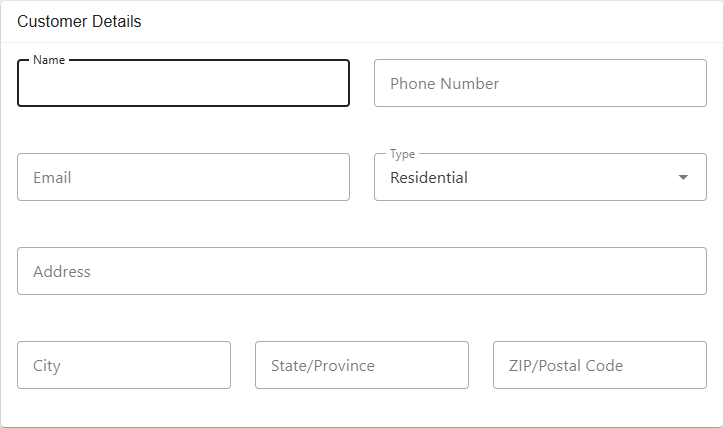
Fill in the essentials under Customer Details: Name, Phone Number, Email, and Type (Residential or Commercial). Start typing the Address and pick from the suggestions to fill city, state, and ZIP in one step.
Step 3, Set the billing account (optional)
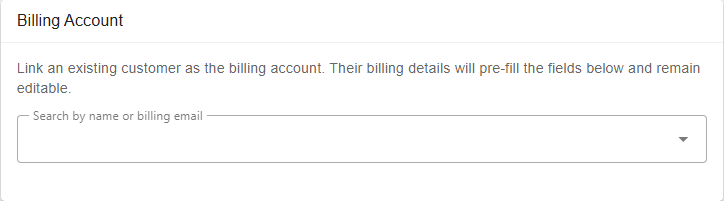
Most residential customers pay for their own work, so you can skip this section. But for property managers, commercial accounts, and home warranties, the person who receives the service often isn’t the one who pays the bill. You have two ways to handle that:
- Link an existing customer as the billing account. Search by name or billing email, and their billing details pre-fill (and stay editable). This is how you point many service addresses at a single payer.
- Enter billing details by hand. Tick Same as customer details to copy the customer’s own info, or type a separate billing name, email, and address.
Step 4, Add notes and save
Use Additional Notes for anything a tech should know before they arrive: a gate code, the preferred entrance, a dog in the yard. Click Create Customer to save. They’re now ready to attach to a job, estimate, or invoice.
What’s next
- Create your first job for your new customer.
- Build your dispatch board to get the work scheduled.