Find Your Way Around PocketTech
A quick orientation to PocketTech: how the app changes for admins, dispatchers, and field techs, and where to find the tools each role uses every day.
PocketTech shows each person the tools their job needs, and not much else. Where you land when you log in, and what sits in your sidebar, depends on your role. Here’s the lay of the land so nobody has to go hunting.
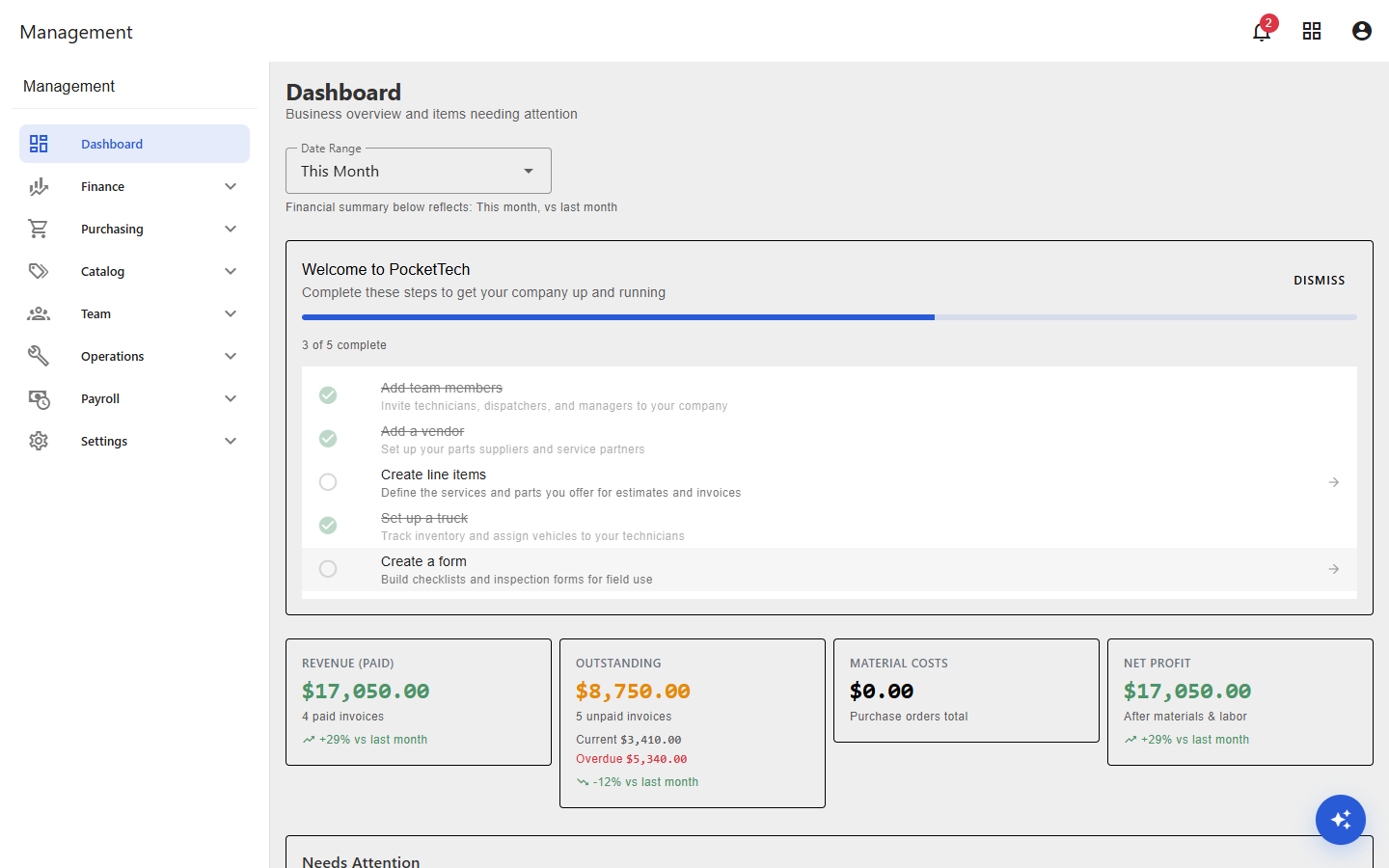
Where you land when you log in
- Technicians open to Tech Home, a simple, tabbed view of their day: jobs, history, hours, and commissions.
- Dispatchers open to the Dispatch dashboard, the live board of who’s working, idle, at lunch, or out on a call.
- Managers and admins open to the Management dashboard, your business at a glance: revenue, outstanding invoices, what needs attention, and a technician leaderboard.
The management sidebar (managers and admins)
The left sidebar groups every management tool into collapsible sections. The group you’re working in expands on its own, and a small colored badge on a group flags anything that needs attention (overdue invoices, pending purchase orders, a low-stock truck).
- Dashboard, pinned at the top, your daily starting point.
- Finance, invoices, service agreements, and job profit and loss.
- Purchasing, purchase orders and vendors.
- Catalog, your pricebook (line items and types). Visible to admins.
- Team, users, training, and status corrections.
- Operations, trucks, compliance, business licenses, and forms.
- Payroll, pay periods, approvals, commissions, and spiffs.
- Settings, company profile, billing, Stripe, accounting, and payroll rules.
The dispatch sidebar
Dispatchers, and managers working the board, get a leaner menu built around the day’s flow: Dashboard, New Bookings, Customers, Jobs, Estimates, and Board.
Inside a job
Open any job and the sidebar switches to that job’s tools: Overview, History, Forms, Estimates, Invoice, Equipment, Images, Diagnostics, and Purchases. Close the job and your main menu comes back.
The top bar, everywhere you go
- A notification bell collects your alerts (new bookings, approvals, expiring credentials) in one place. Tune what you’re notified about under Notification Preferences.
- Your profile menu shows your current status and, if you’re on payroll, quick clock actions: Clock In, Go to Lunch, Back from Lunch, and Clock Out. It’s also where you log out.
- A built-in assistant sits in the bottom-right corner. Open it with the sparkle button or press Ctrl+K when you need a hand finding something.
The technician field app
On a phone, technicians get a focused version built for the field: today’s jobs, one-tap status as they move through a call (Dispatch, Arrive, Close Out), and fast access to estimates, photos, and collecting payment. It stays out of the office tools they don’t need.
What’s next
- Set up your company workspace if you’re just getting started.
- Invite and manage your team so everyone has the right access.
- Build your dispatch board to run the day from one screen.