Invite and Manage Your Team
Add technicians, dispatchers, managers, and admins to PocketTech, set each person's role and pay settings, and manage your team from the Users screen.
Your whole team lives under Users in PocketTech. This guide covers adding people, picking the right role, and the two switches that decide who gets dispatched to jobs and who lands on payroll. You can invite your team here anytime, whether you skipped it during setup or you’re onboarding your tenth hire.
Before you start
You need a manager or admin account to manage users, and an open seat for each new person. If you’re out of seats, add more under Settings, Billing.
Step 1, Open the Users screen
From the Management sidebar, open Team, then Users, and click Create User. (During initial setup, the wizard’s Add Team Member step does the same thing.)
Step 2, Add their basics
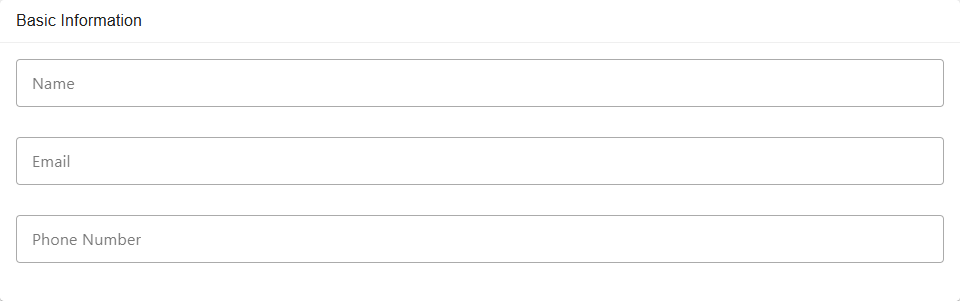
Add a profile photo if you like, then the essentials under Basic Information: Name, Email, and Phone Number. New teammates receive an email to set their own password, so you never handle anyone’s login.
Step 3, Choose a role
Under Role & Level, pick the role that matches what the person does:
- Technician, the field app: their assigned jobs, on-site status, estimates, and invoices.
- Dispatcher, the dispatch board: scheduling, customers, jobs, and estimates.
- Manager, scheduling plus reporting and most management screens.
- Admin, full access, including billing and the pricebook.
For a Technician, you’ll also set a Level (1 to 3). Level reflects experience and feeds features like recommended estimates and labor costing.
Step 4, Set pay and dispatch options
Two switches near the bottom of the Role & Level card decide how the person shows up elsewhere in PocketTech, and both are on by default.
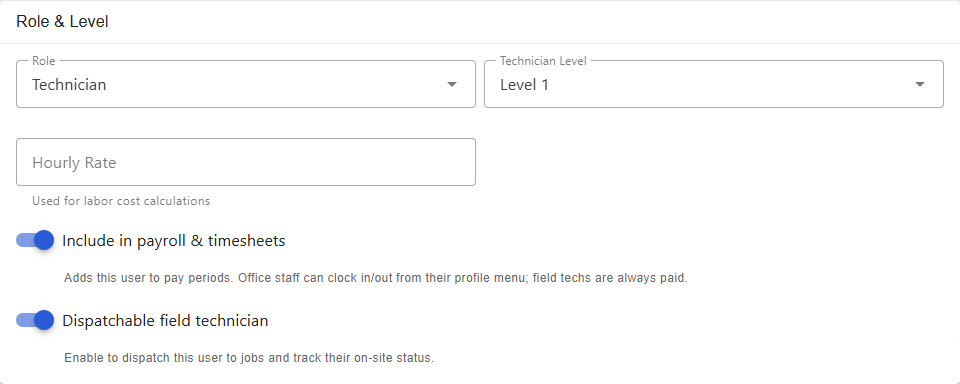
Here’s what each switch does:
- Include in payroll & timesheets adds them to pay periods. Office staff can clock in and out from their profile menu; field techs are always paid for dispatched time. Turn this off for anyone who shouldn’t appear on payroll, like a subcontractor you pay outside the system.
- Dispatchable field technician lets you assign them to jobs and track their on-site status on the board. Turn it off for office-only roles who never run calls.
If you’re a manager or admin, you can also set an optional Hourly Rate, used for labor-cost calculations in job profitability. It’s hidden from other roles.
Step 5, Save and manage later
Click Create User. The person appears in your Users list, where you can open anyone to edit their details, change their role, or update pay settings later as things change.
What’s next
- Set up your company workspace if you’re still getting started.
- Find your way around PocketTech to see what each role sees.
- Build your dispatch board once your techs are in.